A fingerprint smudged on a phone screen. A face that unlocks a tablet propped against the fruit bowl. A watch that knows your resting heart rate better than you do. Biometrics have quietly become the front door to family life, and most households have never sat down to decide who holds the keys.
This is not an argument for turning it all off. Face unlock is often safer than a four-digit PIN that three people can guess. The point is narrower and more useful: know what is stored, where it syncs, and who can reach it. An hour with every device on the kitchen table covers more ground than you would expect.
You cannot review what you have forgotten you own. Before touching any settings, list every device in the house that can recognise a face, a finger, a voice, or a heartbeat.
Note who uses each one and who is enrolled on it. That single column — enrolled users — is where most surprises live.
Under Settings, find the Face ID and Passcode menu on iPhone, or Fingerprints, Face Unlock and Passcode on Android. Look at how many prints or faces are registered. Delete the ones that belong to your old phone case phase, a former partner, or a friend who added their thumb "just for the drive home."
If you enrolled your own face on a child's phone to help them set it up, decide now whether that stays. It is a real decision, not a default.
Most banking and payment apps do not receive your face data at all. They ask the operating system to confirm a match, and the system replies yes or no. That is the safe pattern. What deserves a look is which apps can reach the camera, the microphone, or health records, since those feed the systems that do the recognising.
Use Screen Time or Family Link to limit who can change lock settings, install apps, or alter account details. A child who can re-enroll a fingerprint can also quietly grant someone else access to their messages.
Both major phone platforms offer a mode that disables biometric unlock and requires the passcode. It takes a second to trigger and is worth knowing before a border crossing, a protest, or any situation where someone could hold the phone to your face.
A shared tablet with three enrolled fingerprints is not a shared tablet. It is one account with three keys, and everyone who unlocks it sees the same email, photos, and messages.
Where the device supports it, set up separate user profiles or a restricted kids' profile, each with its own biometric enrollment. On devices that do not, sign out of accounts that hold anything private before handing the tablet over.
School-issued devices are their own category. Many are managed by the school, which can mean login biometrics and usage data sit with the district rather than your family. If that concerns you, ask the school in writing what is collected, how long it is kept, and who can see it.
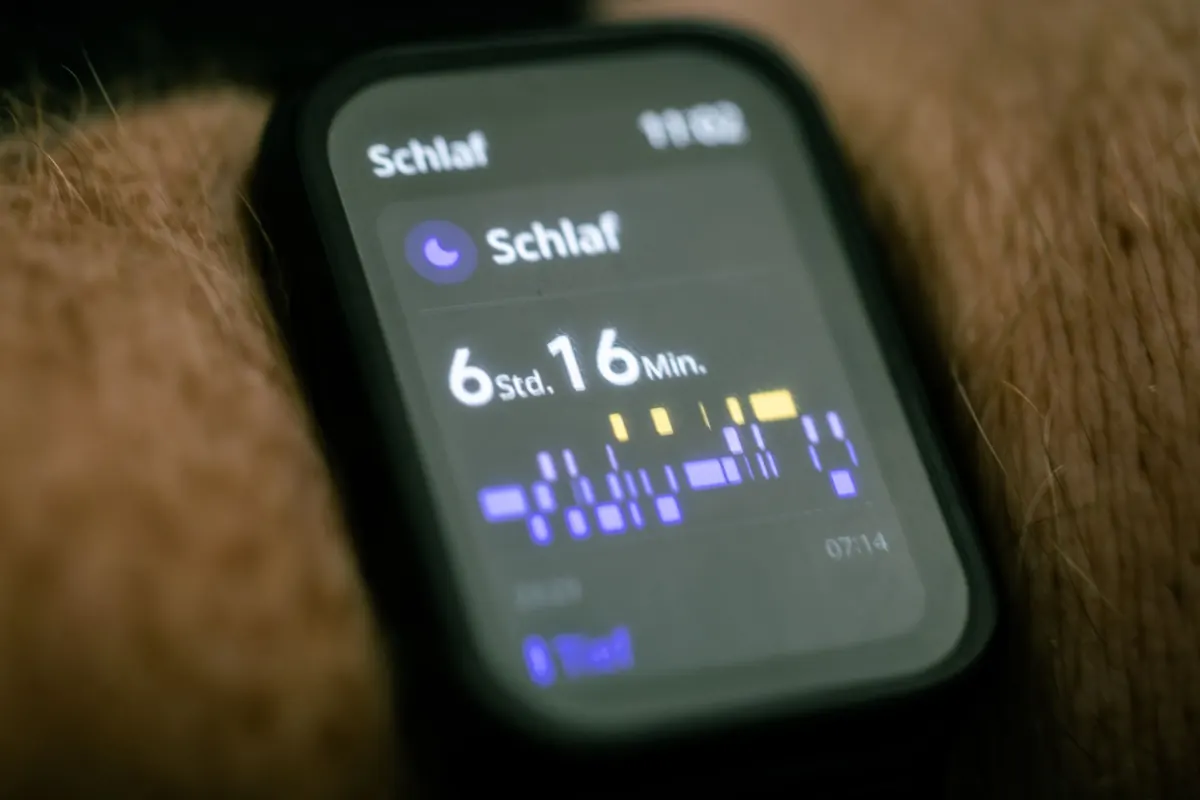
Watches and bands collect heart rate, sleep patterns, blood oxygen, temperature, and cycle data. None of that is a fingerprint, but it is biometric data by any reasonable definition, and it is often more revealing than a thumbprint.
Be deliberate about employer or insurer wellness programmes. Step counts feel harmless; heart rhythm and sleep data are a different conversation. Read what you are agreeing to before you connect a device.
One practical note: consumer wearables are not diagnostic tools. An irregular reading is a reason to speak with a clinician, not a diagnosis, and not something to self-treat from a dashboard.
Fingerprint door locks store templates either on the lock itself or in the manufacturer's app account. Open the admin screen and count the enrolled prints. Remove anyone who has moved out, and delete temporary codes after the guest leaves rather than trusting that they expired.
Cameras with face recognition often let you label household members as known people. Decide whether you want that, and check how long clips are kept and whether they are stored in the cloud.
Voice assistants may hold a voice profile used to personalise responses. If you have one, it can usually be deleted in the assistant's settings. Do it for family members who no longer use the device.
An old fingerprint is not a memory. It is a working key that nobody remembers cutting.
Biometric enrollments have a way of outliving the reasons they were created. A short review makes sense after a new phone arrives, a partner moves in or out, a teenager gains more independence, or a device passes to a grandparent or a younger sibling.
When a phone or tablet leaves the house for good, do a proper factory reset rather than deleting apps and photos. On modern phones, face and fingerprint templates are stored in a dedicated security chip rather than the cloud, so a full erase is what clears them. Wiping is also what stops the next owner from inheriting your accounts.
Twice a year, put every device on the table, pour something warm, and run the same short pass: enrolled biometrics, app permissions, shared profiles, health app connections, lock admin lists. Twenty minutes covers a typical household.
Then write down three family rules and stick them near the router. Something like: no one enrolls a fingerprint on someone else's device without asking; the shared tablet uses separate profiles; hand-me-down devices get wiped before they change hands.
If a question touches a child's data at school, a workplace wellness programme, or a health reading that worries you, take it to the school, your employer's privacy contact, or a qualified professional rather than guessing. The settings you control at home are the easy half, and they are the half most families never finish.
Photo: smpratt90 / Pixabay